


iTop Screen Recroder
The Easiest Way to Record Your PC Screen
The Easiest Way to Record Your PC Screen
Share


I'm trying to screen record a TV show on my computer for later watching. Is it possible to record live TV on computer? How to record TV on computer?
Streaming services revolutionize how we watch TV programs. Most popular TV channels around the world are available on those platforms so that we can enjoy live TVs around the world on mobile devices and laptops without a TV. If you want to record TV on a computer, there are two ways.
Most popular streaming services - like YouTube TV, Hulu, Sling TV, etc., - offer Cloud DVR that allows subscribers to record and save live TV programs to cloud storage.
It is easy to record a TV show on a computer with Cloud DVR.
Log in your account > head to Live TV guide > select a show > hit Record or Add (+) button on the detail page.
Notices:
iTop Screen Recorder is a professional screen recorder for PC which is able to record any streaming content from any service while keeping original quality. More than capturing a live TV or on-demand movies/shows, it supports recording microphone and webcam helping content creators to make a review or reaction video with ease.
Follow the steps to record TV on a computer.
1. Download and install iTop Screen Recorder on your PC.

Record screen, webcam, audio and gameplay with ease. Create high-quality screen recordings with no lags and fps drops.
2. Play the show you want to record.
3. Launch iTop Screen Recorder. Go to Record > Screen. Select recording area.
4. Turn on Speaker to record the TV show with audio.
5. Press CTRL and click the REC button at the same time (Enhanced Mode) to screen record protected videos without black screen.
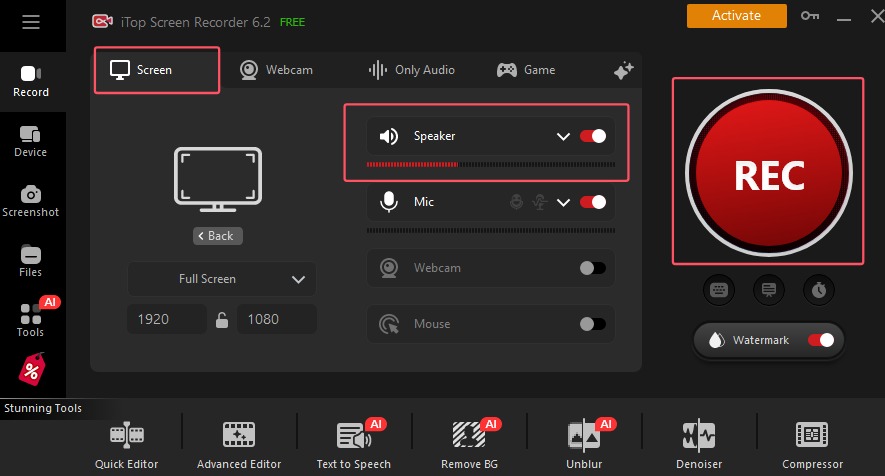
6. Click Stop button on the mini control bar to stop recording.
7. Find the recorded video in Files > Video. Play, edit or share it at will.
Disclaimer: We DO NOT advocate recording copyrighted TV shows for commercial and illegal use.
Yes No
Thanks for your feedback!Share
 Do you have any more questions? Share with us

Invalid email address
 Submitted successfully
 People Also Ask
Can a DVR record streaming videos? Is there any easy way to record live streaming TV? How to record streaming TV with Cloud DVR services?
How to extend recording time on YouTube TV? Learn how to record videos on YouTube TV more easily and never miss your favorite shows again!
Can you record on Apple TV, including screen recording, games, shows, or baseball? Here’s a clear guide to what’s actually possible.
Subscribe to Our Newsletter
Subscribe to our newsletter to stay updated every moment.

Subscribe to Our Newsletter
Subscribe to our newsletter to stay updated every moment.
© 2026 iTop. All rights reserved.


