


iTop Screen Recroder
The Easiest Way to Record Your PC Screen


Buy iTop Screen Record PRO to Enjoy More
Create high-quality screen recordings and save big.
The Easiest Way to Record Your PC Screen
Share


Any way to screen record DRM-protected videos without black screen? This guide shows how to screen record on Instagram without black screen on PC/Mobile/Mac.
Are you troubled by Instagram screen recording black screen for protected videos? It’s important to save impressive moments on IG. No worries, no matter if you’re using a Windows PC, Mac, or Android and iOS device, this guide will walk you through how to screen record on Instagram without black screen.
Can you screen record on protected Instagram videos? Yes, you can rely on a powerful screen recorder, iTop Screen Recorder, to easily capture any content on IG without black screen and notifications on PC.
Here’s the steps to screen record on Instagram without black screen:
Step 1. Free download and install iTop Screen recorder on your computer.
Step 2. Open Instagram in the web browser or desktop app. Find the video or content that you need to capture.
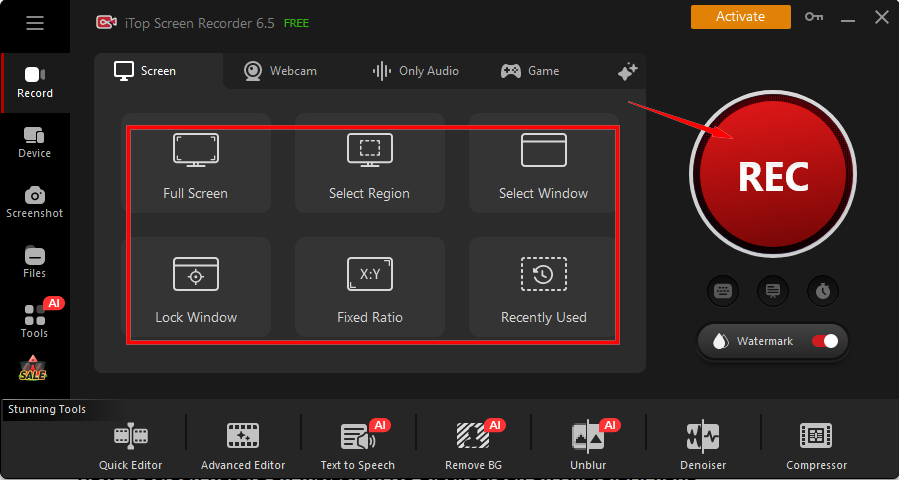
Step 3. Go back to iTop Screen Recorder, select “Full Screen”, “Select Region” or others. Click “REC” to start recording without black screen.
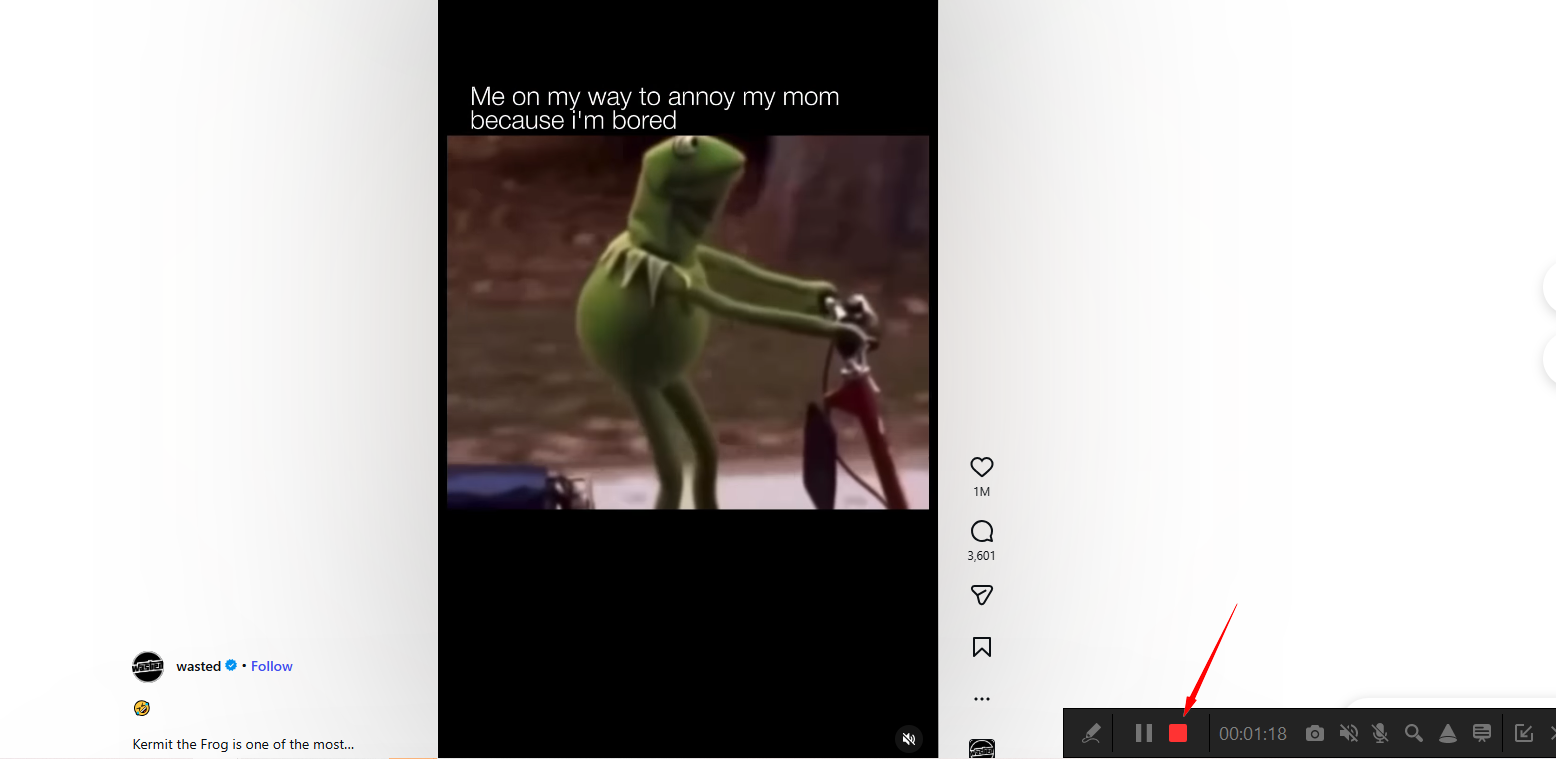
Step 4. Click on the red icon to stop recording, and your recorded video will be saved in “Files”.
Tips: You’re allowed to do more with the recorded videos on Instagram, such as quick & advanced editing, compression, extracting silent video or audio only, and more useful tools.
It’s the most efficient way to screen record Instagram on the web or desktop app in HD. Get a free download now!
With iTop Screen Recorder, You Can Enjoy:
Does Instagram block screen recording on mobile? Yes, for any protected video, Instagram does restrict third-party app recording. Fortunately, iTop Screen Recorder can help you screen record on IG no black screen by mirroring your phone screen to your PC.
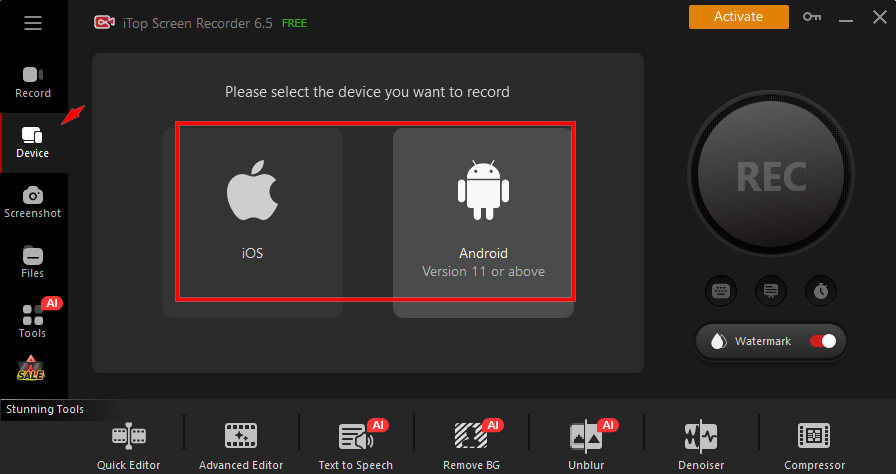
Step 1. Open iTop Screen Recorder, go to “Device” and select iOS or Android.
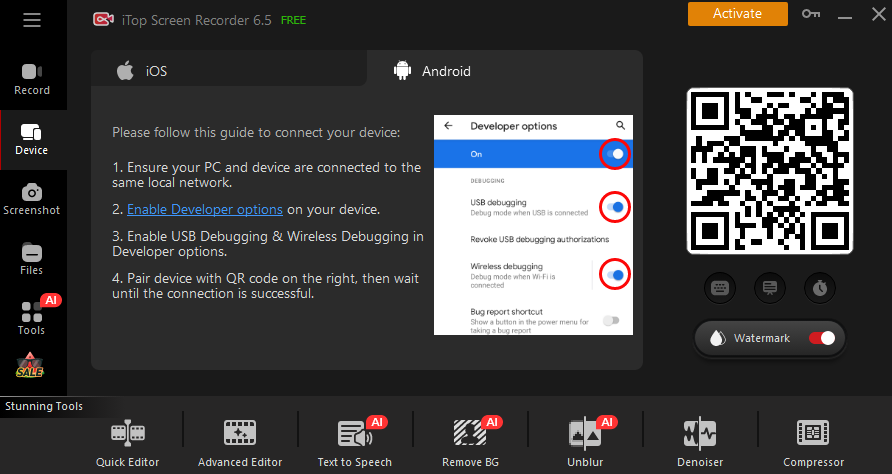
Step 2. Once selected (Android), follow the on-screen guide to connect and start your screen recording on Instagram.
Step 3. Click “Done” to stop recording. Disconnect your device from your PC, and you’ll find your records in “File” > “Video”.
Tips: If you don’t like screen mirroring, you can also use another device that has a camera, like a phone or a pad, to screen record Instagram on phone without black screen.
For Mac users, QuickTime is a perfect free screen recorder for restricted videos on Instagram. With professional screen recording, it enables you to capture any Instagram Stories, Reels, etc., with high-quality audio.
Step 1. Download & install QuickTime Player on your Mac.
Step 2. Click "File" > “New Screen Recording”, and play the restricted video you want to record.
Step 3. Click the recording control widget > the red circular button to stop it.
How to screen record on Instagram without black screen? Free download iTop Screen Recorder to easily capture any desired content on Instagram without black screen!

Record screen, webcam, audio and gameplay with ease. Create high-quality screen recordings with no lags and fps drops.
Yes No
Thanks for your feedback!Share
 Do you have any more questions? Share with us

Invalid email address
 Submitted successfully
 People Also Ask
Learn how to watch TikTok Live anonymously. Discover safe methods and tips to view TikTok live streams without being seen.
Hi, I’d like to view Facebook Stories anonymously without appearing on the viewer list. Is this possible? How can I do it? Do I need Facebook Story viewers?
Hi, guys, is there a YouTube private video viewer to watch private YouTube videos? How to watch private YouTube videos with links or other methods?
Subscribe to Our Newsletter
Subscribe to our newsletter to stay updated every moment.

Subscribe to Our Newsletter
Subscribe to our newsletter to stay updated every moment.
© 2026 iTop. All rights reserved.


