


iTop Screen Recroder
The Easiest Way to Record Your PC Screen


Buy iTop Screen Record PRO to Enjoy More
Create high-quality screen recordings and save big.
The Easiest Way to Record Your PC Screen
Share


How can I make Steam download games faster? Use a wired Ethernet connection, set Steam to higher priority, clear download cache, check 11 tips & tricks!
Are you a big fan of Steam games, like Palworld and Resident Evil Requiem? Steam is one of the world’s most popular gaming platforms, but many gamers are stuck with slow downloads on Steam due to different causes. How to download games from Steam faster? This guide will show you 11 tips & tricks for high-speed downloads!
Here are 6 useful tips on how to download games faster on Steam. Follow these step-by-step guides to speed up your Steam download now.
Disable your Wi-Fi temporarily and plug your PC directly into the router via an Ethernet cable. This provides significantly faster and more reliable speeds while downloading.
Higher CPU priority helps Steam get more system resources for faster downloading.
Temporary installation files and background cache can slow down your downloads.
Open Steam Settings, select Downloads > click Clear Cache.
Switching your server to a closer or less crowded region can dramatically improve your downloads.
Make sure Limit download speed is unchecked and Throttle downloads while streaming in Steam Downloads settings.
Extra tip: how to download free games in Steam? Go to the Store on Steam desktop, search and download free games under the Free-to-Play section.
Besides the above, here are some pro tips on how to get Steam games to download faster:
How to capture your impressive game clips or interactions on Stream? iTop Screen Recorder is the best tool that supports HD and smooth screen recording without a black screen.
How to Screen Record on Steam on PC
Step 1. Free download and install it on your PC.
Step 2. Navigate to Game, select your Steam game, and click on “REC”.
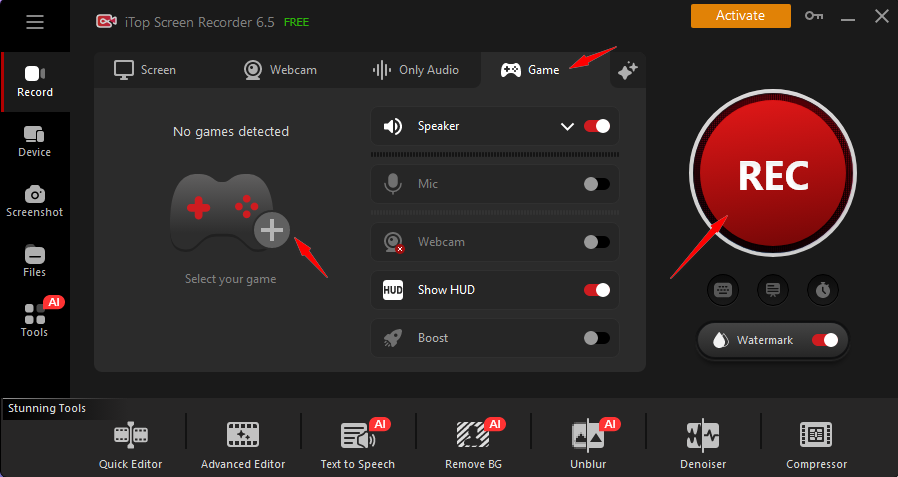
Step 3. Press F9 to stop recording anytime.
With iTop Screen Recorder, You Can Enjoy:
You May Need:
That’s all about how to download games from Steam faster. Try these practical tips and tricks to enjoy high-speed Steam downloads!

Record screen, webcam, audio and gameplay with ease. Create high-quality screen recordings with no lags and fps drops.
Yes No
Thanks for your feedback!Share
 Do you have any more questions? Share with us

Invalid email address
 Submitted successfully
 People Also Ask
Check out the Stripchat Recorder that bypasses the content protection policy set by Stripchat. Record Stripchat for free.
Can I record Chaturbate? How to record Chaturbate videos or streams hassle free? Any solution is appreciated.
Learn how to watch TikTok Live anonymously. Discover safe methods and tips to view TikTok live streams without being seen.
Subscribe to Our Newsletter
Subscribe to our newsletter to stay updated every moment.

Subscribe to Our Newsletter
Subscribe to our newsletter to stay updated every moment.
© 2026 iTop. All rights reserved.


