


iTop Screen Recroder
The Easiest Way to Record Your PC Screen


Buy iTop Screen Record PRO to Enjoy More
Create high-quality screen recordings and save big.
The Easiest Way to Record Your PC Screen
Share


Recording Fubo helps save favorite live sports and shows for later watching. Can you record on Fubo? How to record on Fubo?
Fubo or fuboTV, is one of the best live TV streaming services with a heavy emphasis on live sports - like NBA, NFL, MLB games - alongside with entertainment. It is also an available place to watch the 2026 FIFA World Cup live.
All subscribers are provided with unlimited Cloud DVR to record live broadcasts on Fubo for later watching. So, the answer to "Can you record on Fubo?" is absolutely YES. Alternatively, third-party screen recording software helps capture streaming content locally.
Here is the step-by-step tutorial to screen record Fubo in web browsers using DVR.
Record live programs
1. When you start watching the live program, move your mouse on the video player.
2. Click the Rec button on the screen and DVR will automatically record the live game.

Record upcoming programs
1. Search for the upcoming programs you want to record.
2. Select the program and click "Recording options".
3. Choose an option to record.
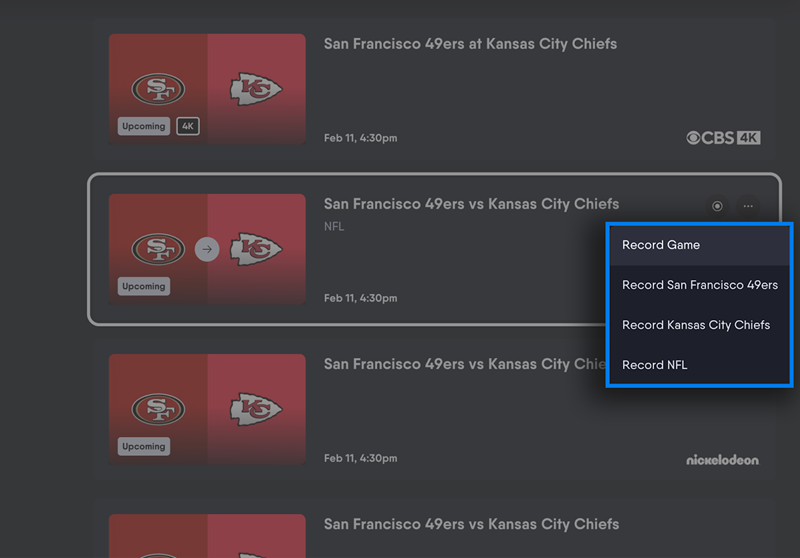
Record shows
1. Search for the TV series you want to record.
2. Select the title and click "Recording options".
3. Select an option: Record episode, Record new episodes only or Record all episodes.
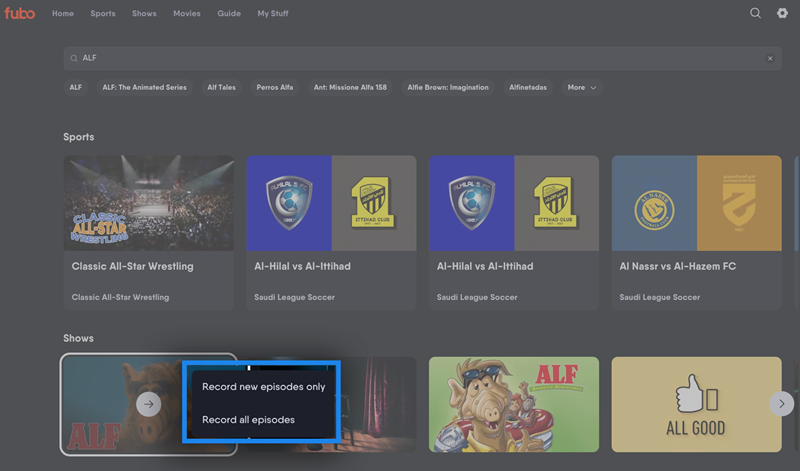
Credit: All screenshots from Fubo Support
Pros & Cons of Fubo Cloud DVR
✔ Built-in feature without extra installations.
✔ Schedule recording for upcoming programs.
✔ Record as many simultaneous programs as you want.
✘ Can't download and watch recordings offline.
✘ Recordings will expire and be removed after 9 months.
✘ Recordings will be automatically deleted if you cancel the subscription.
If you want to record live sports or shows on Fubo for offline watching or content creation, you can get help from third-party tools, for example iTop Screen Recorder.
iTop Screen Recorder is a free screen recorder for PC letting you record streaming videos with audio, no time limit. It delivers a smooth recording process and high-quality results. It also builds in a video editor to crop, trim and enhance your recordings with ease.

Record screen, webcam, audio and gameplay with ease. Create high-quality screen recordings with no lags and fps drops.
After you download and install it on your PC, follow the steps to record.
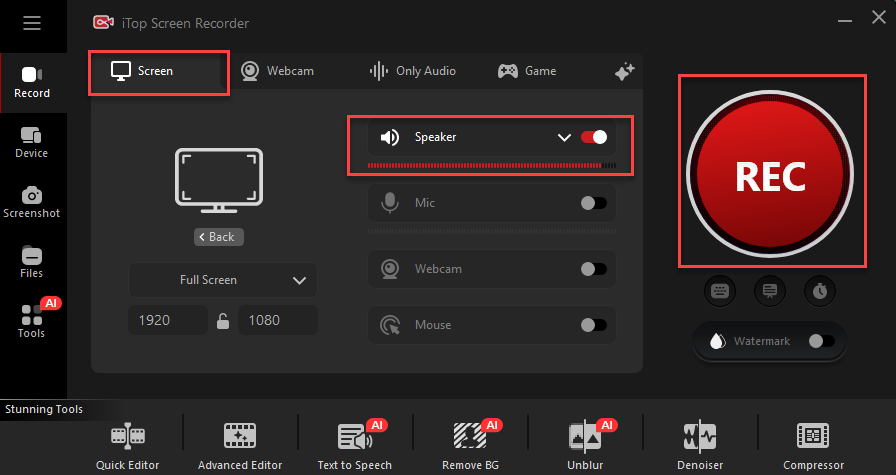
1. Launch iTop Screen Recorder. Go to Record > Screen.
2. Play a live program you want to record.
3. Back to iTop Screen Recorder and select the recording area, for example, the player window.
4. Turn on Speaker and click REC to start recording.
Tip: You can also turn on Mic and Webcam for recording a reaction or review video of a match/program.
5. Click Stop button on the mini control bar to stop recording. The recording file will be automatically saved to Files > Video.
Pros & Cons of iTop Screen Recorder
✔ Save and play any recording offline, no network required.
✔ Record live sports or shows as long as possible.
✔ Inbuilt video editor helps record and edit at one stop.
✔ Recordings will never expire unless you delete them.
✘ Can't record upcoming programs.
✘ Can't record multiple programs at the same time.
✘ Only available on Windows.
Verdict: Both Cloud DVR and iTop Screen Recorder are available to record Fubo. Cloud DVR is a preferred choice if you don't need to download recordings and watch offline while iTop Screen Recorder helps create offline screen recordings perfect for quick sharing and content creation. Depend on your need and choose the right tool.
Warning: Please DO NOT record copyrighted content for any commercial or illegal use.
Yes No
Thanks for your feedback!Share
 Do you have any more questions? Share with us

Invalid email address
 Submitted successfully
 People Also Ask
Hi guys, do you know where the DAZN record button is? I want to save it and watch it later when I don't have an internet connection. Thanks.
How to record on Fox Sports app? The previous method I used is not working, is there any easy solution? Thanks a lot!
Due to timing issues, I sometimes miss games. So, can I record on ESPN Plus? Is there any way to record ESPN Plus for offline viewing?
Subscribe to Our Newsletter
Subscribe to our newsletter to stay updated every moment.

Subscribe to Our Newsletter
Subscribe to our newsletter to stay updated every moment.
© 2026 iTop. All rights reserved.


